Install tutorial (Jellyfin 10.10.x)
Step-by-step installation of the Floatplane plugin through Jellyfin's own plugin catalogue. Every screenshot is from a stock Jellyfin 10.10.7 (linuxserver.io image). You need to be a Jellyfin administrator. Total time: about two minutes.
Other ways to install (no screenshots): the install.sh script and a manual unzip —
see the README.
1. Add the plugin repository
Open Dashboard → Plugins → Repositories. The list only contains the default "Jellyfin Stable" repository.
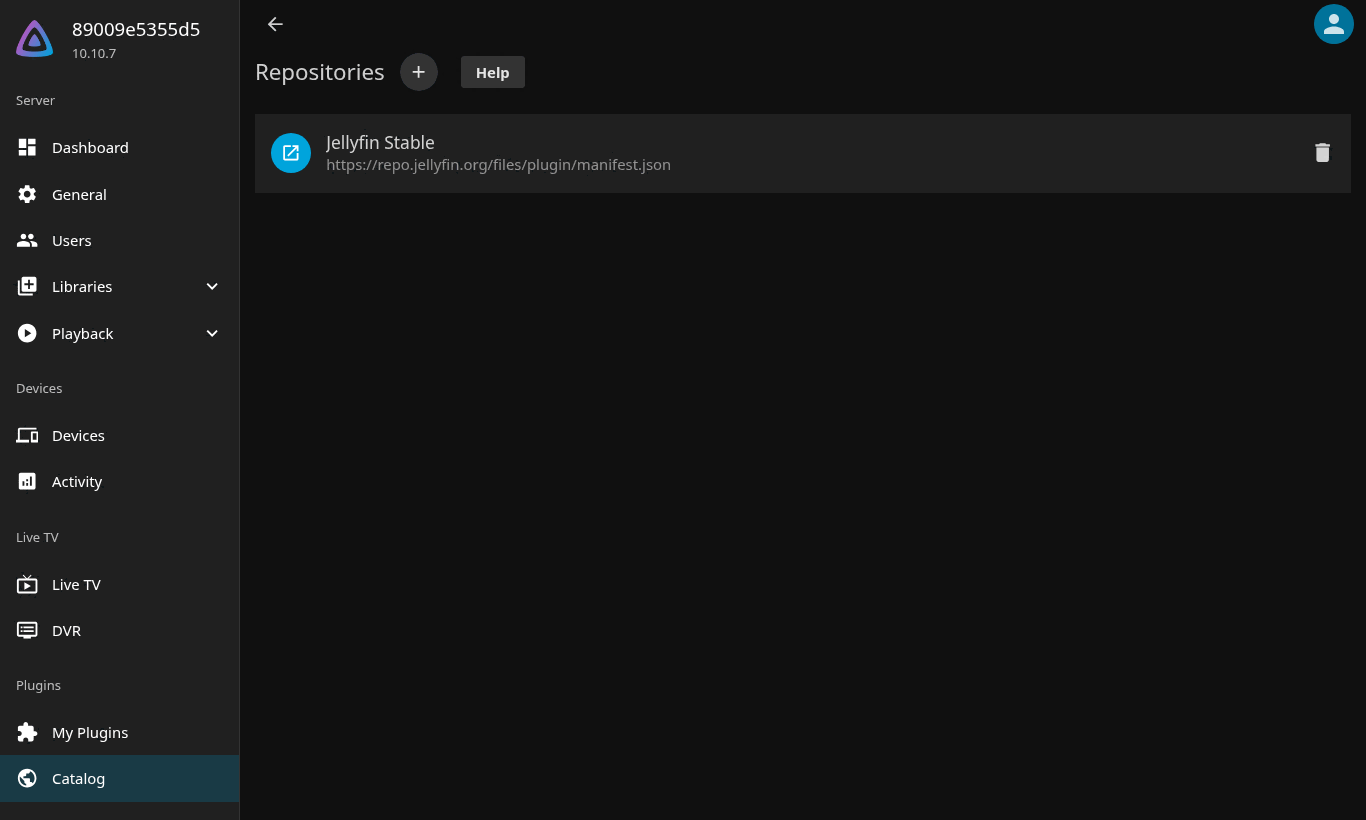
Press the + button next to the "Repositories" title. In the dialog, enter any name and this URL:
https://gitea.brasse-pc.eu/brasse/jellyfin-plugin-floatplane/releases/download/latest/manifest.json
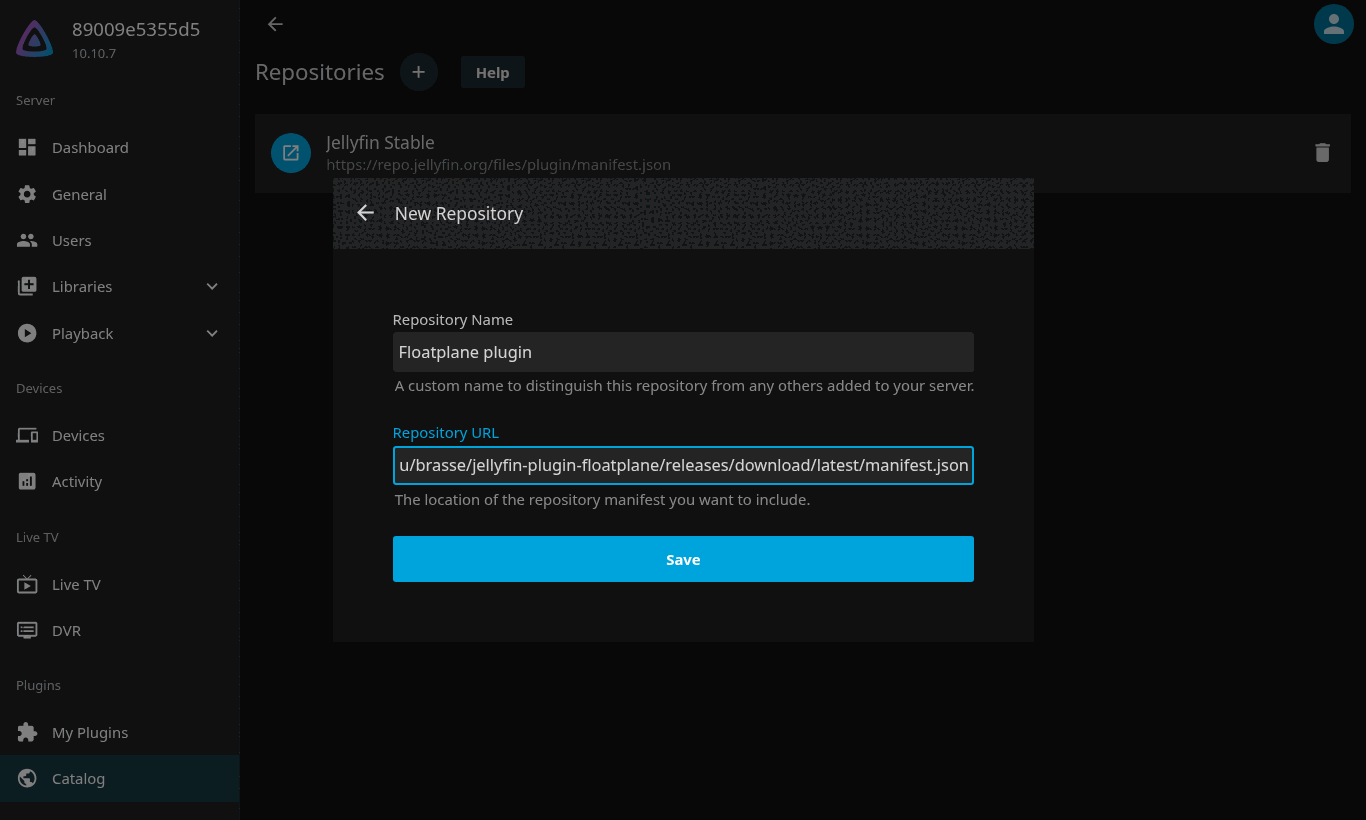
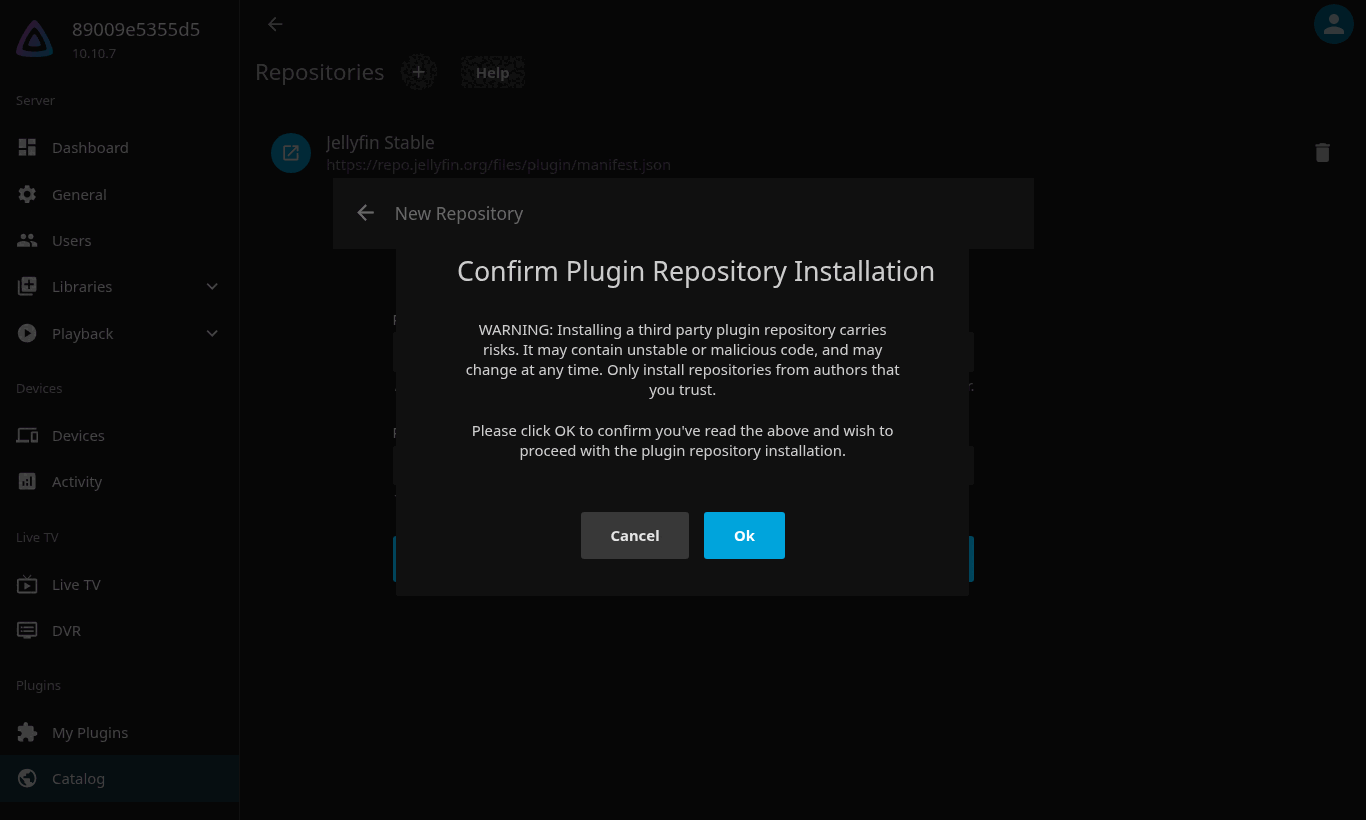
Press Save. Jellyfin warns that third-party repositories carry risks — confirm with Ok.
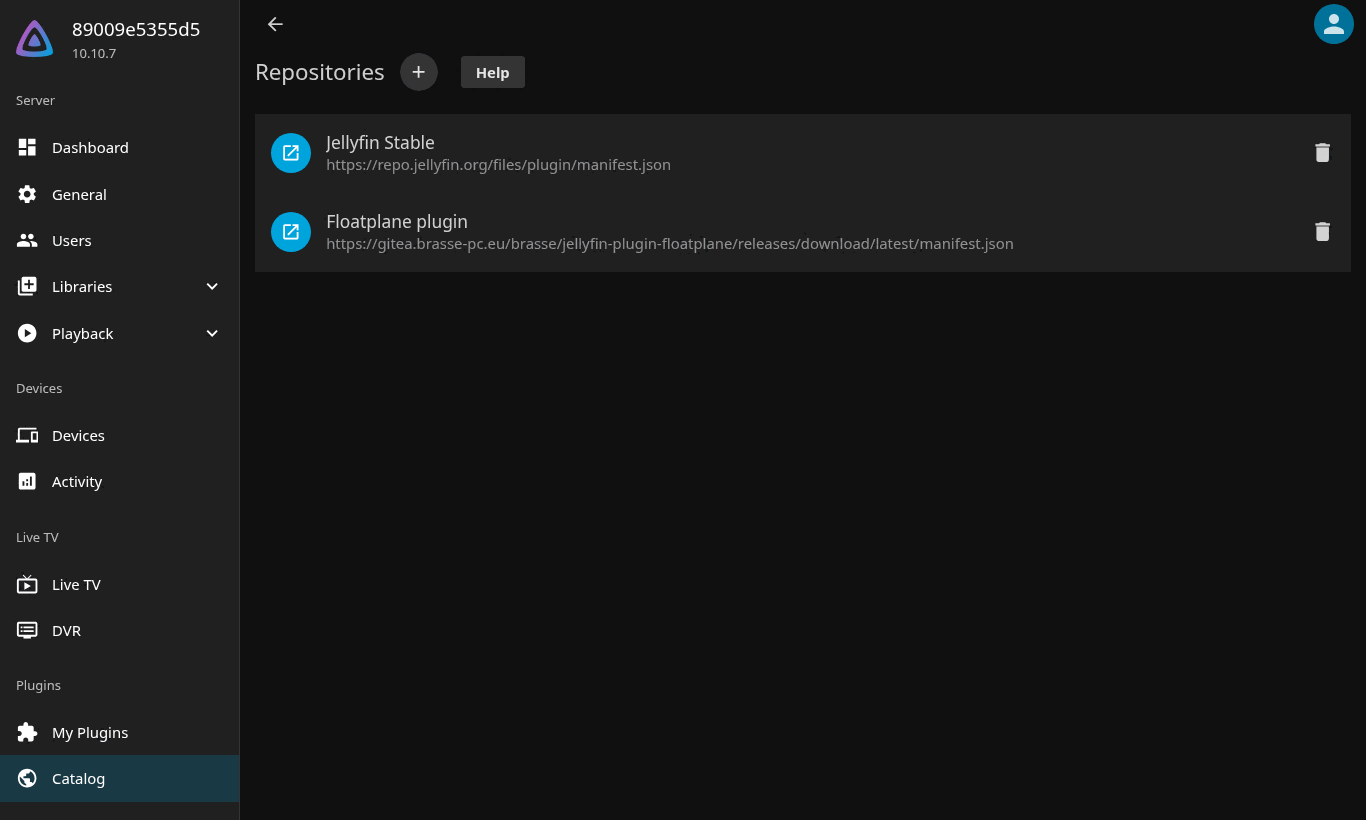
The repository now appears in the list.
2. Install the plugin from the catalogue
Open Dashboard → Plugins → Catalog and scroll to the Channels section. The Floatplane card shows the plugin logo (the catalogue may take a few seconds to load).
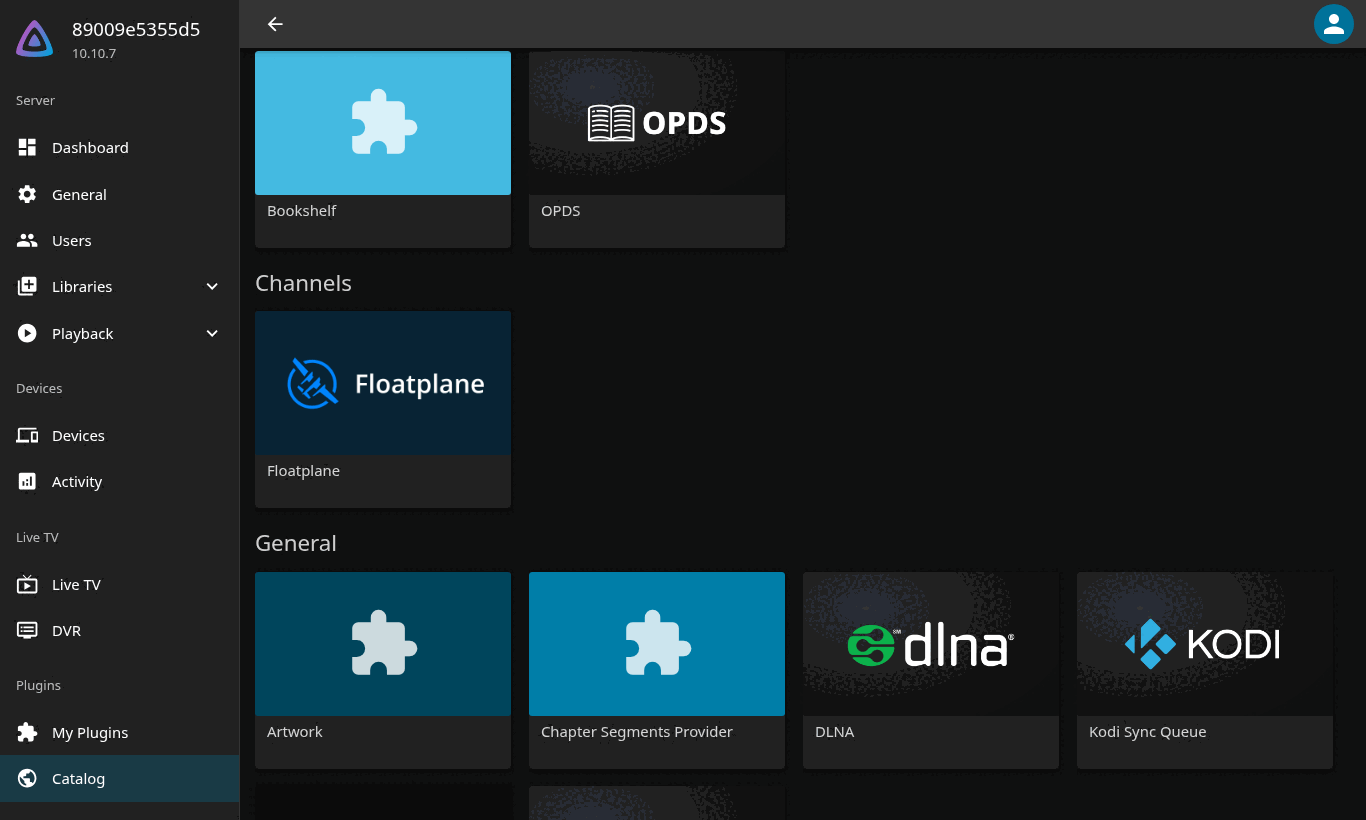
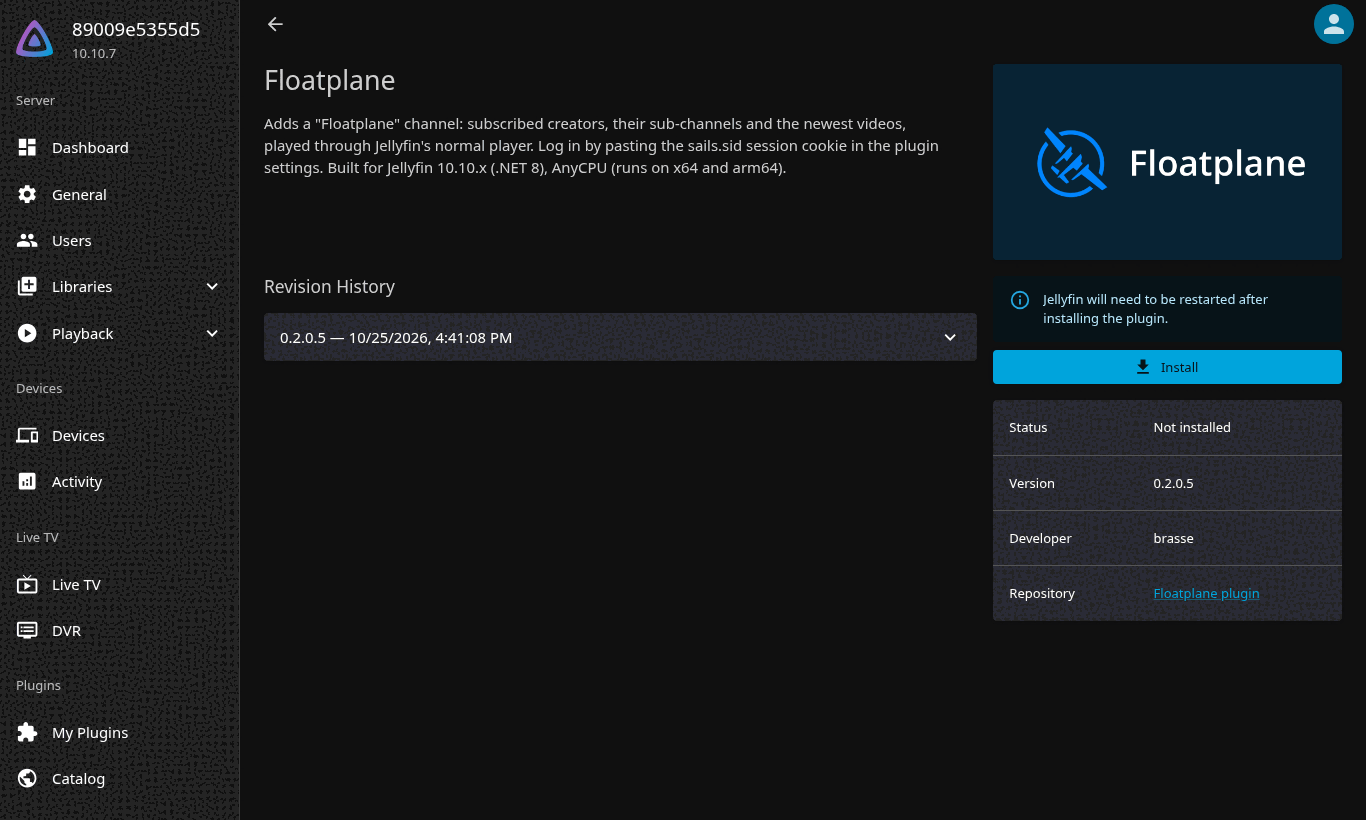
Click the card. The plugin page shows the description, the newest revision and the Install button.
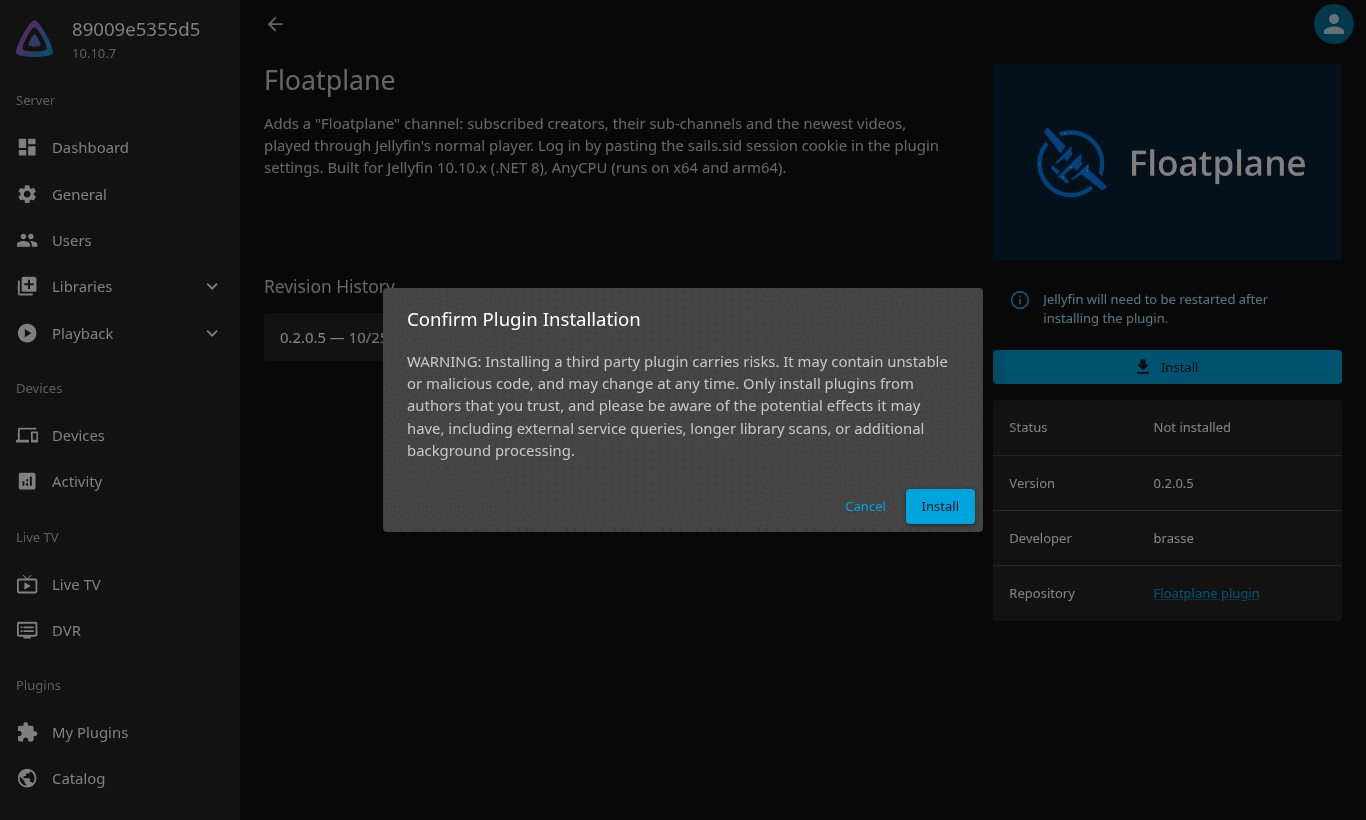
Press Install and confirm the warning with Install.
3. Restart Jellyfin
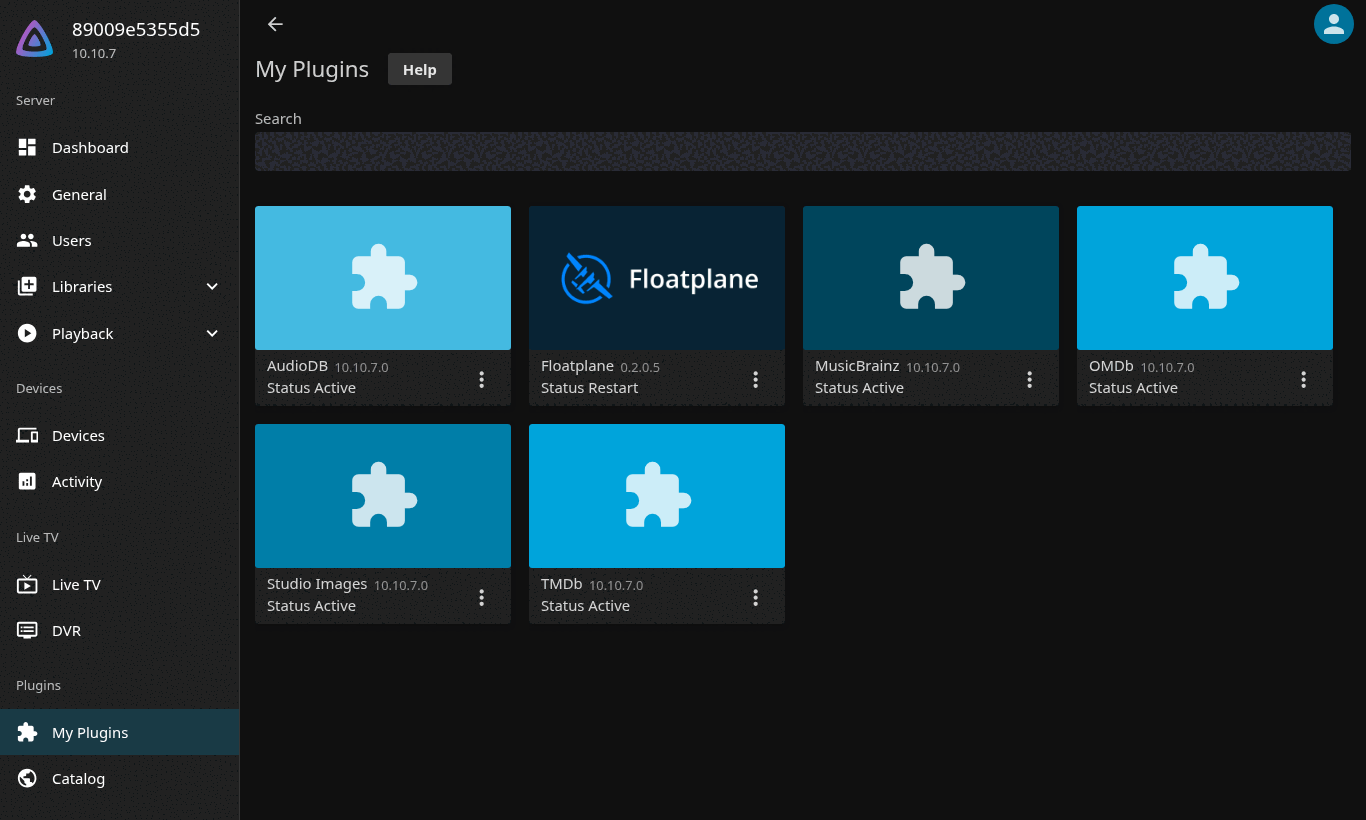
Back on Dashboard → Plugins → My Plugins the Floatplane card says Status Restart: the files are downloaded, but plugins are only loaded when the server starts.
Go to Dashboard, press Restart and confirm.
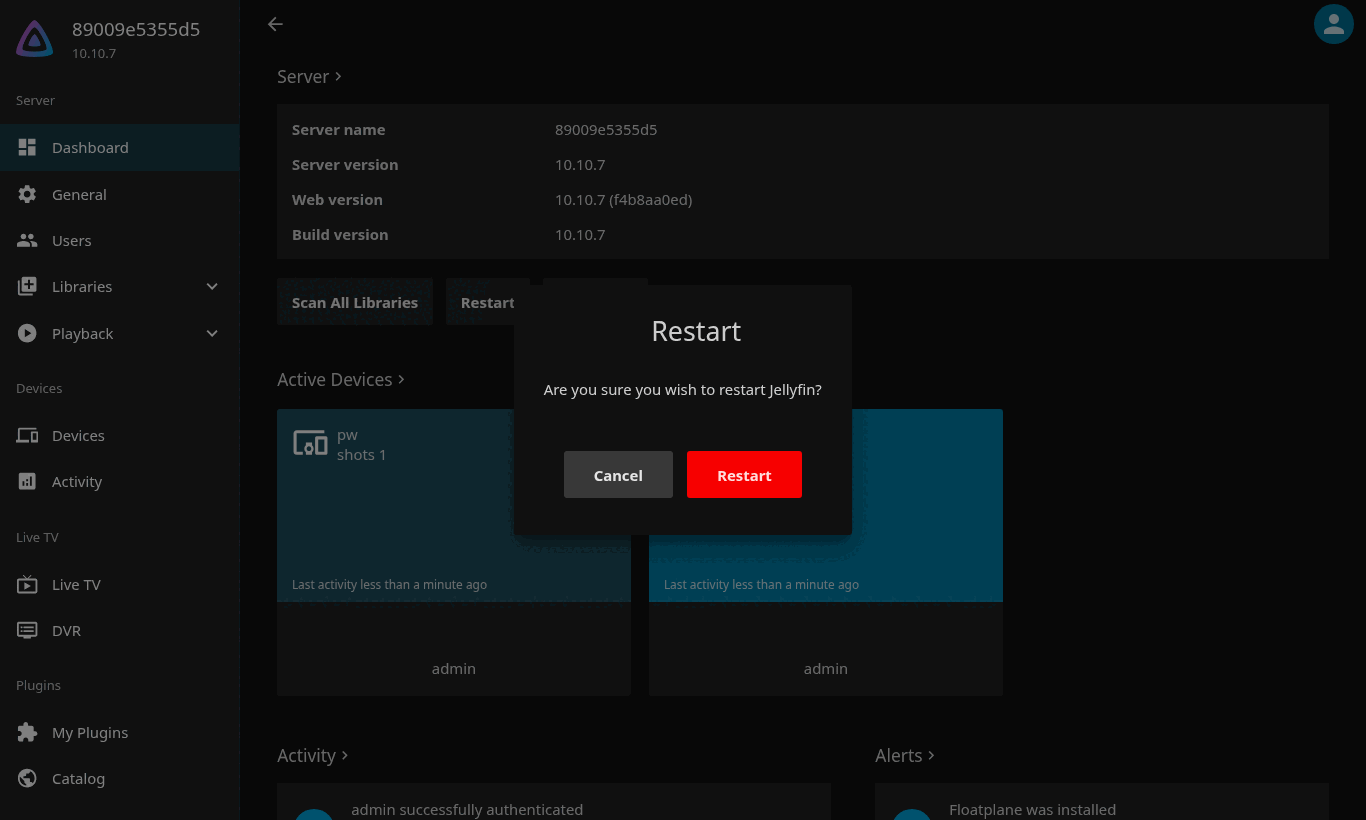
Wait half a minute and log in again. My Plugins now shows Floatplane with Status Active.
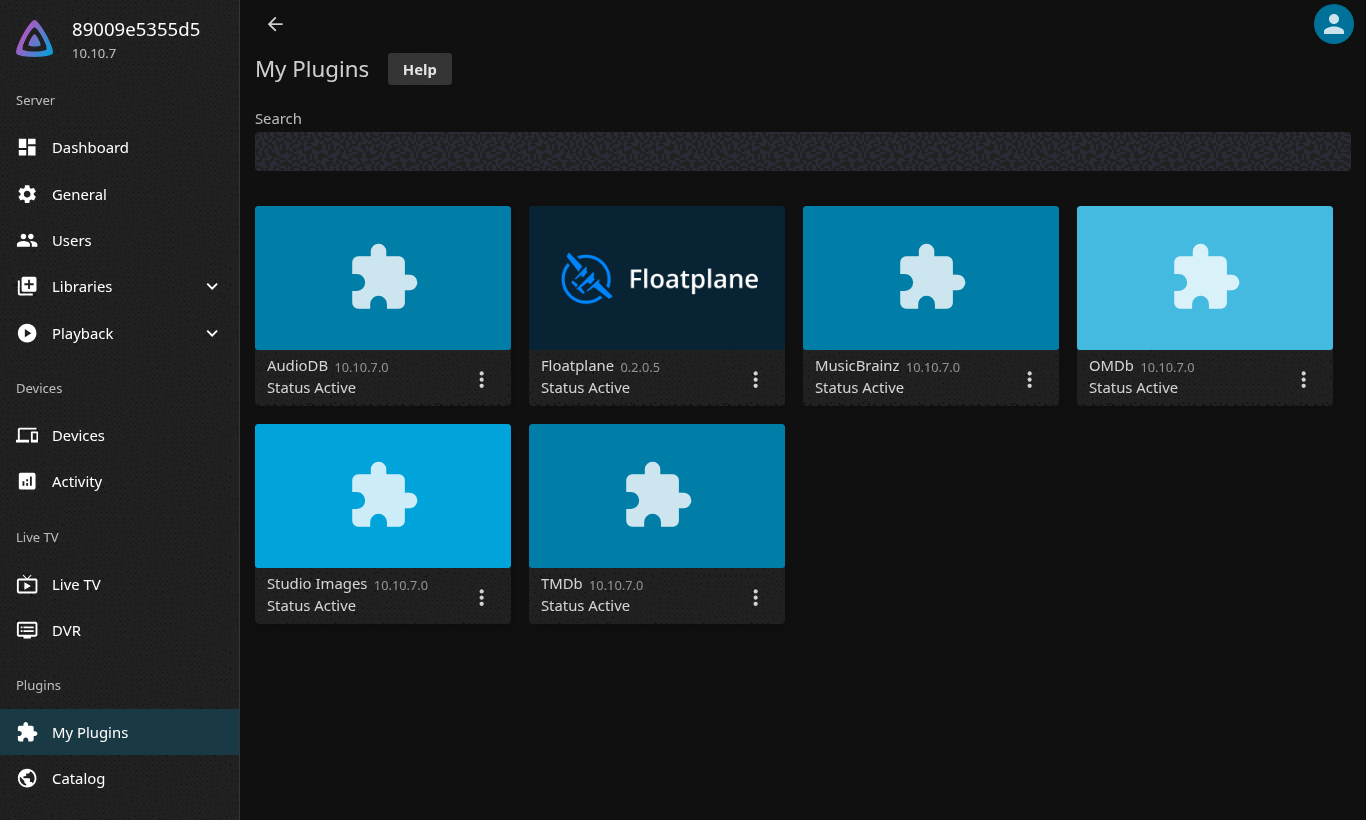
If the Restart button is missing (some Docker set-ups), restart the container instead:
docker restart jellyfin.
4. Configure the plugin
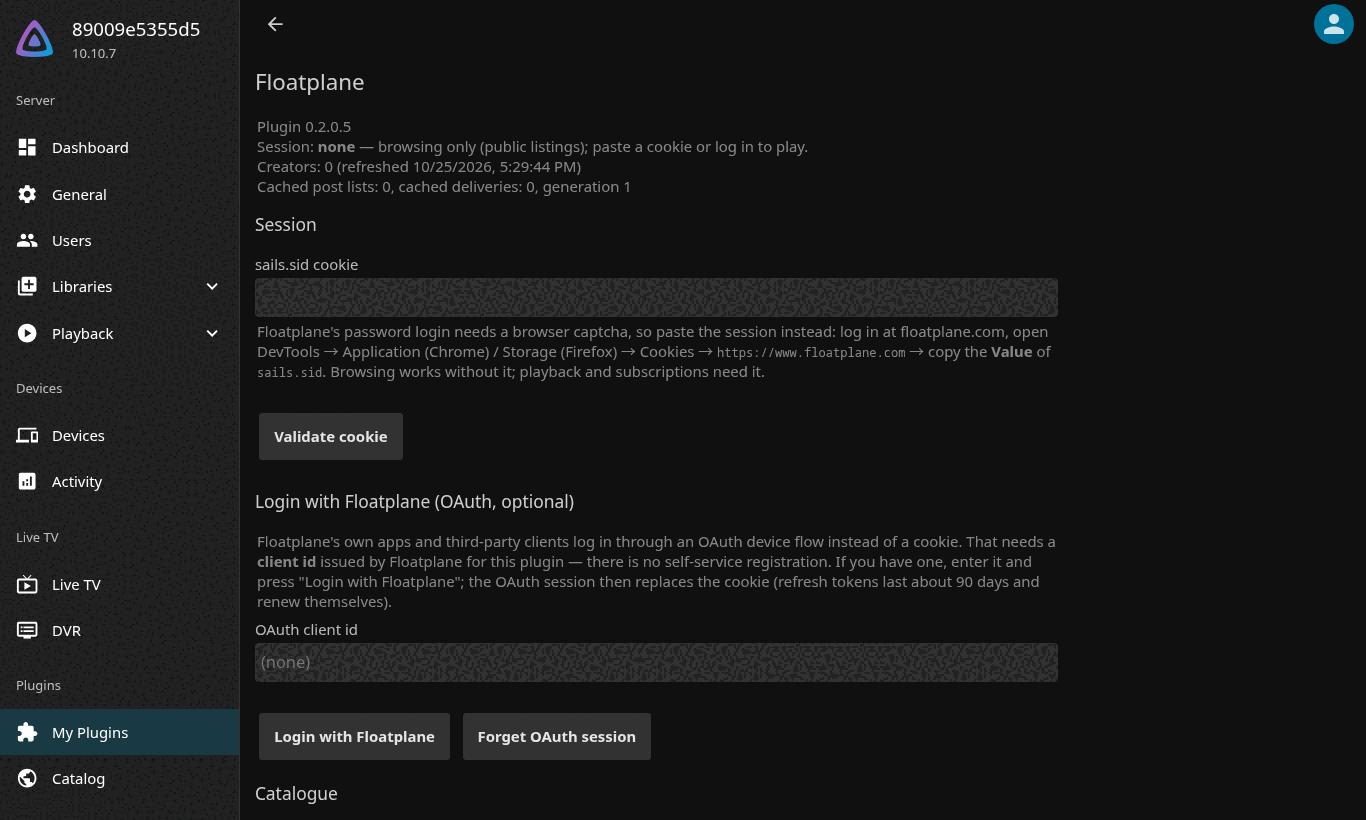
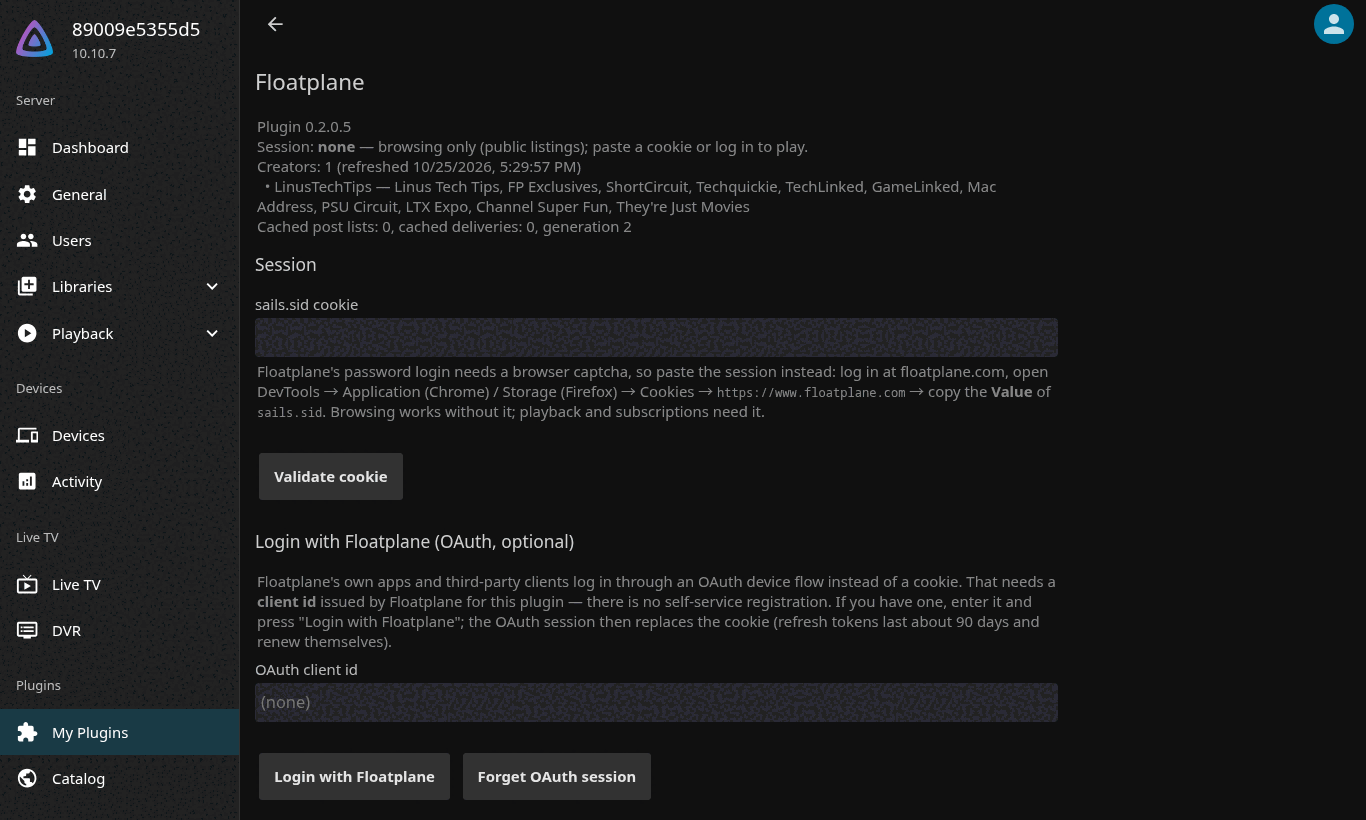
Click the Floatplane card (or its ⋮ menu → Settings). The settings page opens with a status block at the top.
Session. For playback the plugin needs your Floatplane session. Log in at
floatplane.com in your browser, open the developer tools (F12) → Application
(Chrome/Edge) or Storage (Firefox) → Cookies → https://www.floatplane.com, copy
the Value of the cookie named sails.sid and paste it here. Press
Validate cookie — the plugin answers with your user name and subscriptions.
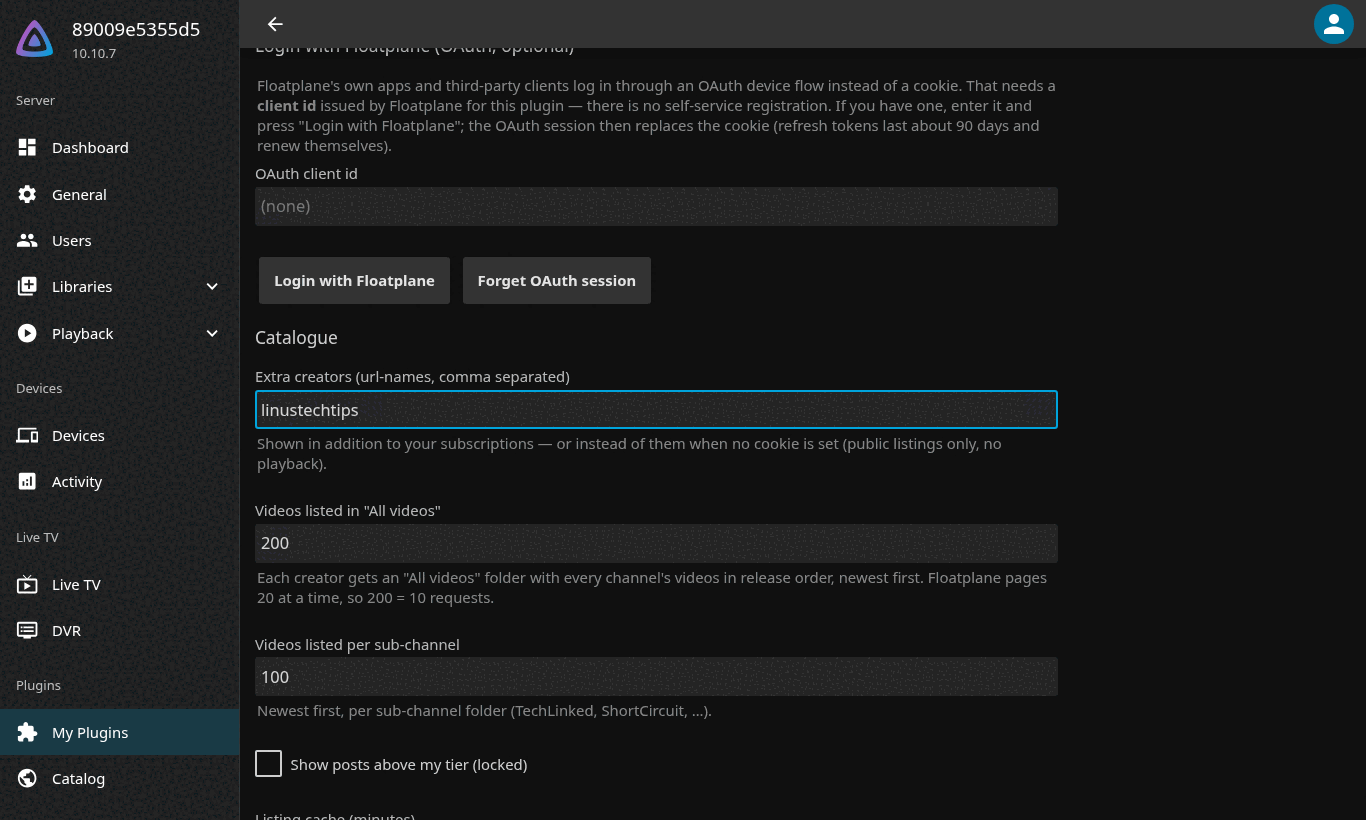
Extra creators is optional: creators you are not subscribed to but want to browse
(public listings work without a session, playback does not). The example uses
linustechtips.
Press Save at the bottom. The status block reloads and lists the creators the plugin found, with their sub-channels.
5. Browse
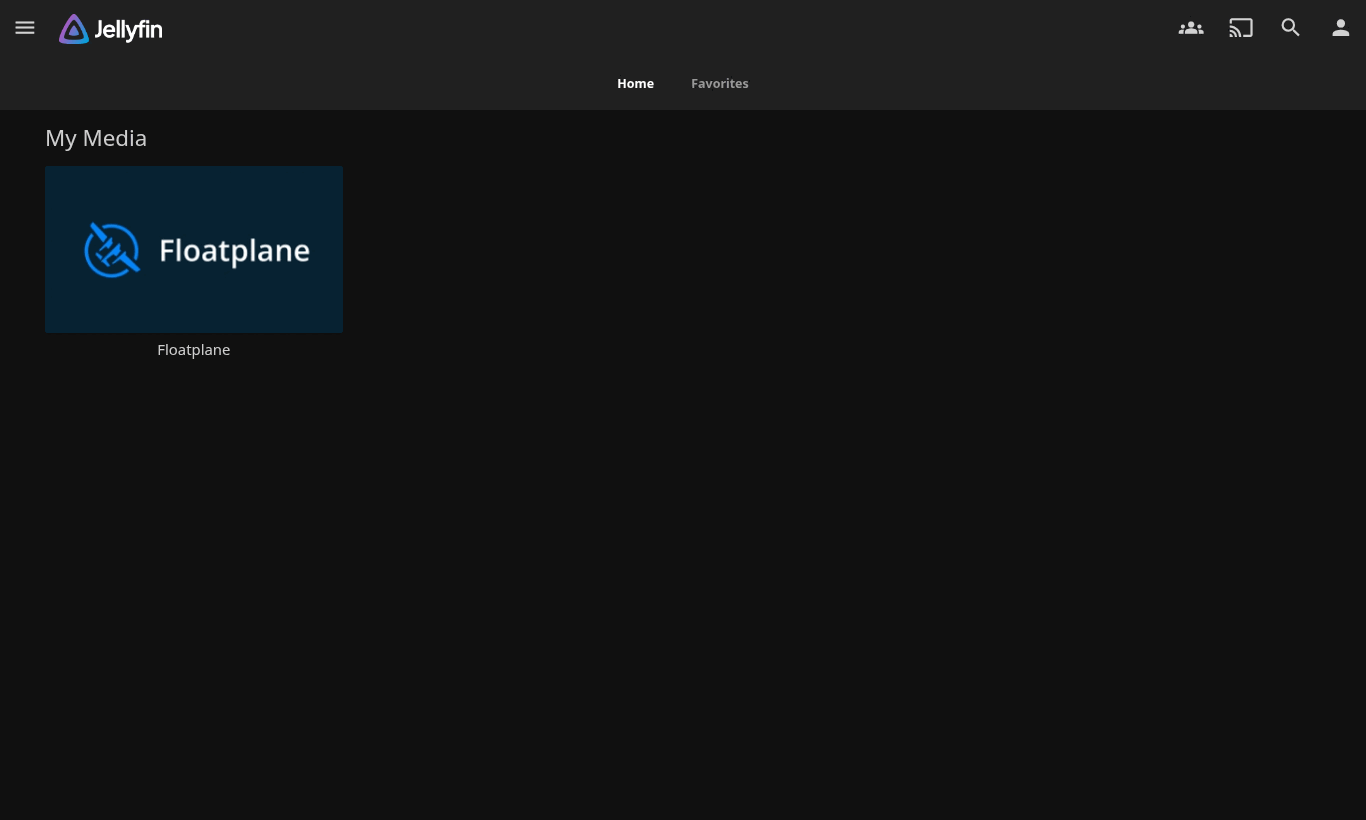
Go to the home screen: a Floatplane tile is now under My Media. Open it to see the creators, then "All videos" and the sub-channels. Playback needs the session from step 4.
Next: Update tutorial · Floatplane API notes · Full usage guide